Services
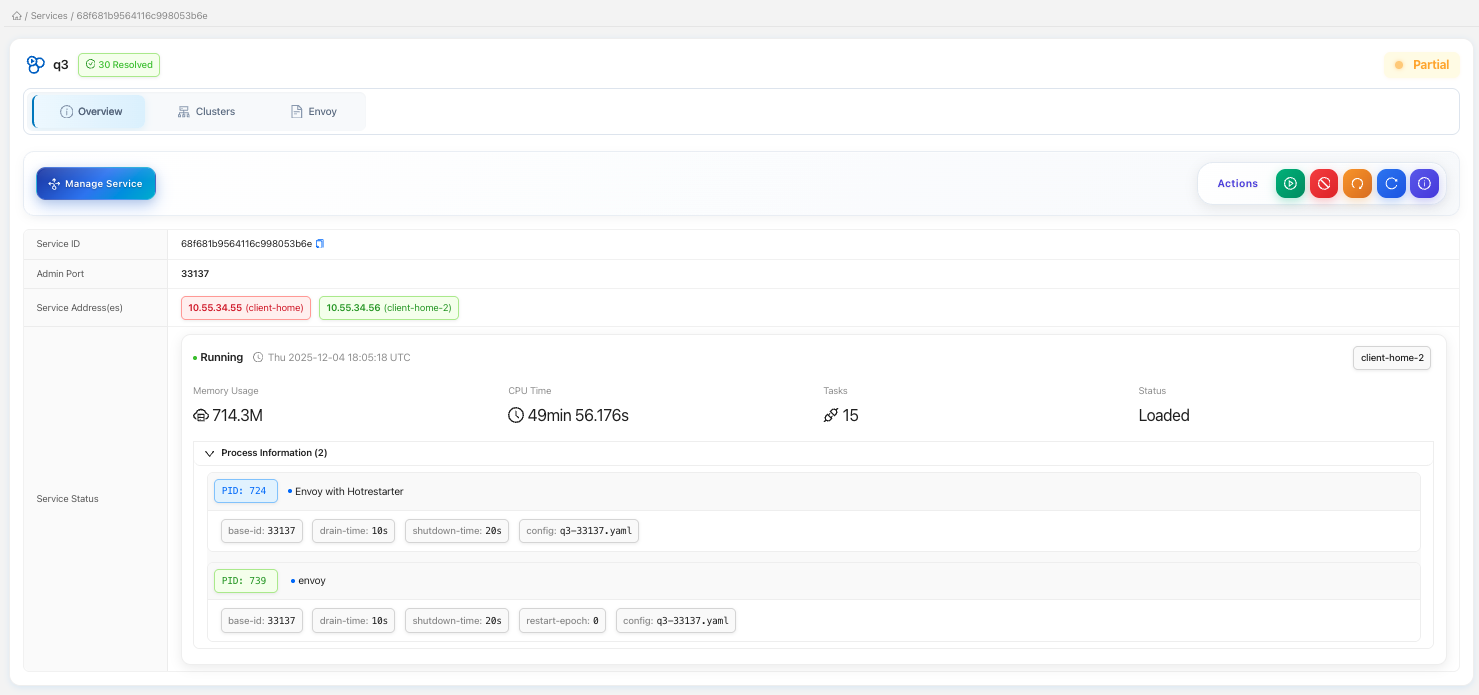
A service is a named Envoy deployment: an Envoy bootstrap plus the xDS resources that configure it, together with the set of edge clients it is deployed to. The Services console is where you see the deployment status of every service across the fleet and drill into any single running Envoy.
The services list
Open Services (/services) for the paginated list of every service in the current project. Each row is one service.
| Column | Meaning |
|---|---|
| Name | The service (deployment) name. |
| Status | Fleet health of this deployment — see below. |
| Version | The Envoy version the service targets. |
| Deployed | How many clients the service is deployed to. |
| IP Addresses | The downstream address of each client running it (a +N more link opens the full list). |
| Admin Port | The Envoy admin port for the deployment. |
Status
Status reflects how many of the service's target clients are currently connected:
| Status | Meaning |
|---|---|
| Live | All target clients are connected. |
| Partial | Some, but not all, clients are connected. |
| Offline | The service is deployed but none of its clients are connected. |
| Not Deployed | The service has no client targets yet. |
Filtering
The filter bar narrows the list by name, version, status, or IP address. Enter your terms and click Search (or press Enter); Clear resets them. Filtering resets you to the first page.
Row actions
Click a row to open its detail page. The actions menu (the icon in the first column) offers:
- Edit — open the service detail page.
- Create GSLB — recreate the service's GSLB record (see Recreate GSLB below).
Service detail
Clicking a service opens /services/:id, which loads the service document together with its Envoy details and any configuration errors. A status badge in the header summarizes live deployment health. The page is organized into tabs.
Overview
The default tab shows the service summary and its deployment controls: deploy the service to clients, run lifecycle actions (reload / status / start / stop / restart) against the running Envoys, and refresh live status. Deploying opens a dialog to choose the target clients. All of these are commands on the command stream — the same dispatch mechanism described under Clients.
Clusters
A read-only view of the deployment's clusters. This tab is disabled until the service is actually deployed to at least one client.
Envoy
The Envoy tab surfaces the details of the running Envoy(s) for this service. It is backed by the envoy-details endpoint:
GET /api/op/services/envoys/:service_id?project=<project>
This returns the stored service document — the deployed Envoy configuration and the per-node state the controller tracks for it. Like Clusters, the tab is available once the service is deployed.
The Envoy a service deploys is anchored by its bootstrap configuration. For what the bootstrap contains and how it is authored, see Bootstrap.
Configuration errors
If the control plane recorded errors while building this service's configuration, an error badge appears next to the service name in the header. Clicking it opens a drawer that separates active from resolved errors and, for each, shows the severity, the human-readable message, the raw message, the offending resource (name, type, node id), first/last-seen timestamps, occurrence count, and a suggested fix where available. You can select errors and Resolve them (mark handled) or Clear them (delete permanently).
Recreate GSLB (disaster recovery)
The Create GSLB action — from the list row menu or the confirmation dialog — recreates the GSLB record for a service:
POST /api/op/services/:service_id/recreate-gslb?project=<project>
This is a disaster-recovery operation. Its purpose is to rebuild GSLB records and their IP health records after they have been lost — most commonly after restoring the platform from a backup that did not carry the GSLB state.
Behavior:
- If no GSLB record exists for the service, a new one is created — the FQDN is derived from the service name and the project's GSLB zone, and each of the service's client IPs is added with a health record.
- If a record already exists, the operation is additive: it adds any of the service's IPs that are missing and skips the ones already present. It does not tear down or replace the existing record.
The response reports what happened:
{
  "success": true,
  "message": "GSLB record already exists. Added 2 IPs, skipped 3 existing IPs.",
  "gslb_record_id": "…",
  "fqdn": "my-service.gslb.example.com",
  "ips_added": 2,
  "ips_skipped": 3,
  "already_exists": true
}
Recreate-GSLB rebuilds the record and its IP health entries, but it does not restore probe configuration. After recreating, reconfigure the health probes manually. See GSLB Overview.
Recreate-GSLB requires the Admin or Owner role, a project, and that GSLB is enabled for that project. If GSLB is not configured or not enabled, the operation is rejected.
Related
- Clients — the edge nodes a service is deployed to, and the command dispatch behind deploy/lifecycle actions.
- GSLB Overview — global load balancing and health probes.
- Bootstrap — the Envoy bootstrap a service deploys.